

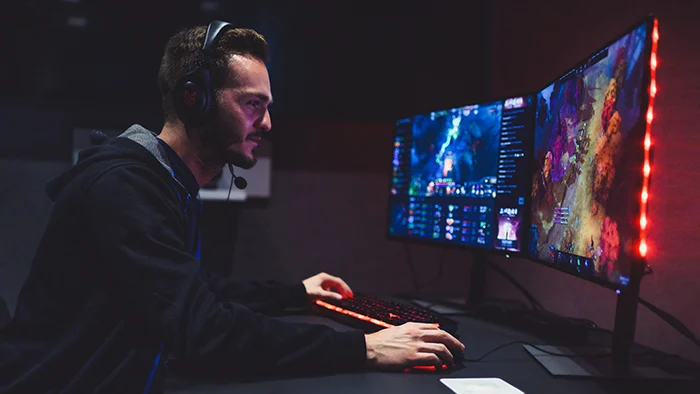
For serious gamers, a laggy or slow PC can ruin the experience. Optimizing your PC for gaming ensures faster load times, smoother frame rates, and an overall more enjoyable gaming session. Whether you’re playing AAA titles, competitive esports, or indie games, there are several ways to get the most out of your system without buying an entirely new rig.
This guide provides actionable tips to maximize your PC’s gaming performance, from hardware tweaks to software adjustments.
1. Keep Your Drivers Updated
- Graphics Drivers: Ensure your GPU drivers are current for optimal game performance and stability.
- Motherboard and Chipset Drivers: Updates can improve system stability and support newer hardware.
- Peripheral Drivers: Gaming mice, keyboards, and controllers may perform better with the latest drivers.
Regular driver updates often fix bugs, improve performance, and unlock new features in games.
2. Optimize Game Settings
- Resolution: Lowering resolution slightly can improve frame rates without sacrificing too much visual quality.
- Graphics Settings: Reduce demanding settings like shadows, anti-aliasing, or post-processing for smoother gameplay.
- V-Sync and Frame Rate Caps: Adjust these settings to prevent screen tearing and ensure stable performance.
Balancing visual fidelity and performance is key, especially for competitive gaming.
3. Clean Up Your System
- Uninstall Unnecessary Programs: Free up memory and CPU resources by removing unused applications.
- Disk Cleanup: Delete temporary files, cached data, and unnecessary downloads.
- Defragment Hard Drives (HDDs Only): Improves load times and system responsiveness; SSDs don’t need defragmentation.
A clean system reduces background load, helping games run more smoothly.
4. Upgrade Hardware Wisely
- RAM: At least 16GB is recommended for modern gaming. Adding more can help with multitasking and future-proofing.
- Graphics Card (GPU): Critical for rendering graphics at high settings. Consider upgrading if your current GPU struggles.
- Storage: SSDs drastically improve load times and system responsiveness compared to HDDs.
- Cooling: Adequate cooling prevents thermal throttling and maintains consistent performance.
Even small upgrades like adding RAM or switching to an SSD can have a significant impact.
5. Manage Background Processes
- Task Manager: Monitor CPU, RAM, and disk usage to identify heavy processes.
- Close Unnecessary Apps: Shut down streaming apps, browsers, or software that isn’t needed while gaming.
- Game Mode (Windows 10/11): Optimizes system resources for gaming.
Reducing background activity frees up processing power for your games.
6. Overclocking (Optional)
- CPU/GPU Overclocking: Increases clock speeds for better performance.
- Caution: Requires proper cooling and understanding of risks; overclocking can reduce hardware lifespan if done incorrectly.
- Software Tools: Many GPUs and CPUs have official overclocking tools to safely tweak performance.
Overclocking can provide extra FPS, but it’s not necessary for every setup.
7. Optimize Network for Online Gaming
- Ethernet Over Wi-Fi: Wired connections are more stable and faster.
- Limit Background Downloads: Pause updates and large downloads to prevent lag.
- Gaming Routers: Some routers prioritize gaming traffic for smoother online play.
A stable network reduces lag, latency, and disconnections, which is especially important for multiplayer games.
8. Adjust Power Settings
- High-Performance Mode: Ensures the CPU and GPU run at their full potential.
- Avoid Power-Saving Modes: These can throttle performance and reduce FPS.
- Laptop Gaming: Make sure your laptop is plugged in for full power output.
Optimizing power ensures consistent performance across all games.
9. Monitor Temperatures
- Use Monitoring Software: Tools like HWMonitor, MSI Afterburner, or Core Temp track CPU and GPU temperatures.
- Prevent Thermal Throttling: Clean dust from fans, improve airflow, or add extra cooling if needed.
Keeping your system cool maintains performance and extends hardware life.
10. Regular Maintenance and Updates
- System Updates: Keep your operating system up to date for security and performance improvements.
- Game Updates: Developers often release patches that optimize performance.
- Hardware Cleaning: Dust-free components help prevent overheating and reduce fan noise.
Consistent maintenance ensures your PC stays in peak condition for gaming.
Comparison Table: Quick PC Optimization Checklist
| Optimization Area | Action | Benefit |
|---|---|---|
| Drivers | Update GPU, chipset, peripherals | Better game performance & stability |
| System Cleanup | Remove unnecessary programs & files | Frees up memory & CPU |
| Game Settings | Adjust resolution, graphics quality | Higher FPS and smoother gameplay |
| Hardware | Upgrade RAM, SSD, GPU | Faster, smoother gaming experience |
| Background Processes | Close unused apps | Maximizes resources for games |
| Network | Use Ethernet, limit downloads | Reduced lag & latency |
| Power & Cooling | High-performance mode, monitor temps | Consistent, reliable performance |
FAQs: Optimizing PC Performance for Gaming
Q: Can I optimize a laptop the same way as a desktop?
A: Yes, though laptops may have thermal limitations and less upgrade potential. Using cooling pads and adjusting graphics settings helps.
Q: Will defragmenting an SSD improve performance?
A: No. SSDs don’t require defragmentation, but keeping them clean and ensuring firmware updates helps performance.
Q: Does overclocking guarantee better FPS?
A: It can improve FPS, but gains depend on the hardware and cooling. Overclock carefully.
Q: Are software optimizers worth it?
A: Some can help, but manual adjustments like closing background apps, adjusting graphics settings, and keeping drivers updated are more reliable.
Q: Can gaming optimization be compared to using Smart Kitchen Gadgets for Busy Families?
A: Surprisingly, yes! Just like smart kitchen gadgets streamline cooking tasks for efficiency, optimizing your PC organizes resources, cleans clutter, and ensures smoother “performance” in gaming, making your experience more enjoyable and less stressful.
Final Thoughts
Optimizing PC performance for gaming involves a mix of software tweaks, hardware upgrades, and regular maintenance. By updating drivers, managing background processes, adjusting game settings, and keeping your system clean and cool, you can enjoy smoother gameplay without necessarily buying a new computer.
Even small changes like switching to an SSD, enabling high-performance mode, or adjusting network settings can make a huge difference in FPS, load times, and overall gaming enjoyment. With consistent care, your PC will perform at its best, providing a seamless and immersive gaming experience.


