

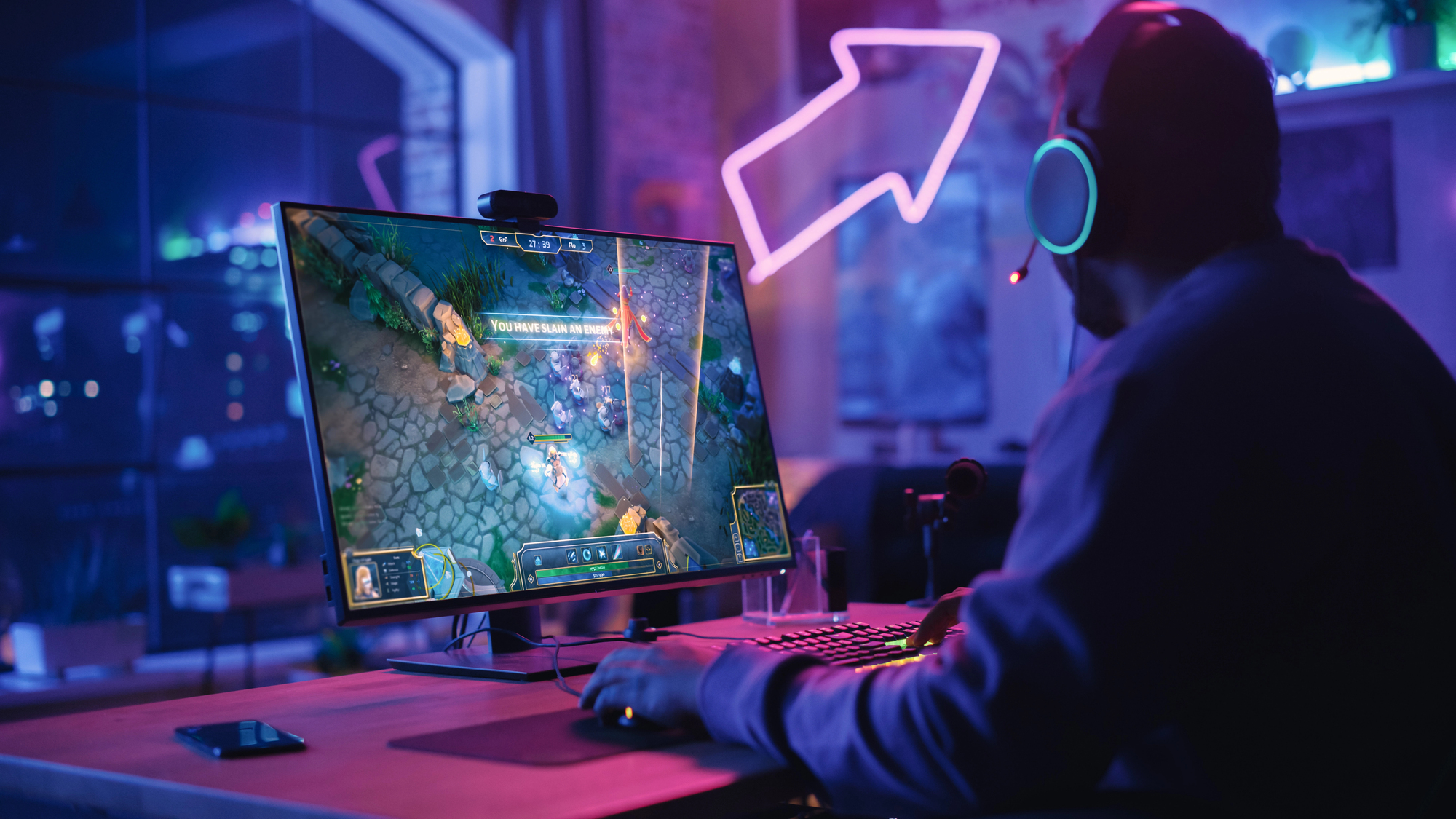
FPS drops are one of the most frustrating things a gamer can experience. The good news is that most of them have a fixable cause, and you usually do not need to buy new hardware to solve it.
You are thirty minutes into a match. Everything is smooth, responsive, and looking sharp. Then it hits. The screen stutters. The frame rate tanks. What was fluid and fast suddenly feels like you are playing through wet concrete. You did not change anything. The game did not update. Nothing looks different on the surface. And yet something, somewhere, decided that right now was a good time to fall apart.
FPS drops are among the most common complaints in PC and console gaming, and also among the most misunderstood. People assume the problem is always the hardware, that fixing it requires a new graphics card or more RAM. Sometimes that is true. More often, the culprit is something far more mundane and completely fixable without spending a cent.
What FPS Actually Means
FPS stands for frames per second. Every moving image on a screen is made up of individual still frames displayed in rapid succession, the same basic principle as a flip book. The more frames your system can produce and display per second, the smoother and more responsive the game feels. Thirty frames per second is considered playable for most games. Sixty is the widely accepted standard for a smooth experience. Competitive gamers often target 144 frames per second or higher, where even small differences in responsiveness become meaningful.
An FPS drop is exactly what it sounds like: a sudden fall in that number. When your game is running at a steady 90 frames per second and then lurches down to 20 for a few seconds, your brain registers that immediately as a stutter or lag even if it resolves quickly. The inconsistency is often more disorienting than a consistently lower frame rate would be. A game running at a stable 45 frames per second can feel more playable than one that oscillates between 80 and 15.
The Most Common Causes
Overheating is the cause that gets overlooked most often, particularly by people who have had their system for a few years. When a CPU or GPU gets too hot, it automatically throttles itself, reducing its own performance to avoid permanent damage. This throttling shows up as sudden, dramatic FPS drops that seem to come from nowhere and then partially recover once the component cools down slightly. If your drops tend to happen after the system has been running for thirty minutes or more, or if your fans are working noticeably harder than usual, heat is the first thing to investigate.
Background processes are another frequent offender that most people never think to check. Your operating system is always running programs in the background, and some of them are not polite about when they decide to do their work. Antivirus scans, system updates downloading and installing, cloud backup software syncing large files, and browser tabs running video can all quietly consume CPU and RAM at exactly the wrong moment. Opening your task manager mid-game and sorting by CPU usage will often reveal something unexpected eating a chunk of your resources.
Drivers that are out of date or, paradoxically, too recently updated can also cause FPS instability. Graphics card manufacturers release driver updates regularly, and occasionally a new driver introduces problems that the previous version did not have. If your FPS drops started shortly after a driver update, rolling back to the previous version is a straightforward thing to try before anything else.
Storage speed matters more than people realize, particularly in open world games that are constantly loading new areas in the background. If your game is installed on an older hard drive rather than a solid state drive, the game engine can stall while waiting for data to load, which registers as a frame rate drop even when the GPU and CPU have headroom to spare. Moving your most played games to an SSD is one of the more impactful upgrades a PC gamer can make for the cost involved.
Settings That Make a Bigger Difference Than You Think
Before touching hardware or drivers, in-game graphics settings deserve a careful look. A handful of specific settings tend to be disproportionately demanding relative to how much they actually improve the visual experience.
Shadow quality is consistently one of the heaviest loads a GPU carries. High and ultra shadow settings can consume a surprising amount of processing power for a visual improvement that most players would struggle to notice at normal gameplay speed. Dropping shadows from ultra to medium or high alone can recover significant frame rate headroom with almost no visible tradeoff during actual play.
Anti-aliasing, which smooths jagged edges on objects and surfaces, is another setting that punishes performance heavily at its highest levels. Newer techniques like DLSS from Nvidia, FSR from AMD, and XeSS from Intel offer a smarter trade: they render the game at a lower internal resolution and use AI upscaling to reconstruct a sharp image, recovering substantial frame rate with minimal visual penalty. Enabling these where available is one of the most effective things you can do on modern hardware.
Ray tracing, where supported, is genuinely beautiful and genuinely expensive. If you are experiencing FPS drops with ray tracing enabled and your GPU is not a recent high-end model, turning it off or reducing it to its lowest setting will almost always solve the problem immediately.
Hardware Fixes Worth Considering
If settings adjustments and software fixes do not resolve persistent FPS drops, the hardware conversation becomes relevant. Cleaning dust from your system is the free option that gets skipped more than it should. Dust buildup inside a PC case reduces airflow, traps heat against components, and contributes directly to the thermal throttling described earlier. A can of compressed air and twenty minutes every six months makes a measurable difference to sustained performance.
Replacing thermal paste on a CPU or GPU that is several years old is a slightly more involved fix but a genuinely effective one. Thermal paste degrades over time, reducing its ability to transfer heat away from the chip efficiently. Reapplying it is inexpensive and can drop temperatures by ten degrees or more on an older system, which translates directly to less throttling and more consistent performance.
RAM speed and quantity can be contributing factors in specific situations. Some games and engines are more RAM-sensitive than others, and running a CPU without its memory configured to the correct speed profile, a setting in the BIOS called XMP or EXPO depending on the platform, is a common mistake that leaves performance on the table for free.
When the Problem Is Actually the Game
It is worth acknowledging that FPS drops are not always the fault of your system. Some games ship with optimization problems that no amount of settings adjustment will fully resolve. If a title is widely reported to have performance issues at launch, waiting for patches is sometimes the most practical answer. Developer-side fixes have resolved frame rate problems that hardware upgrades could not.
Checking community forums and patch notes for the specific game you are struggling with before spending time on your own hardware is always a sensible first step. You might find that dozens of other people have the same issue and that a fix is already in the works or already available.


