

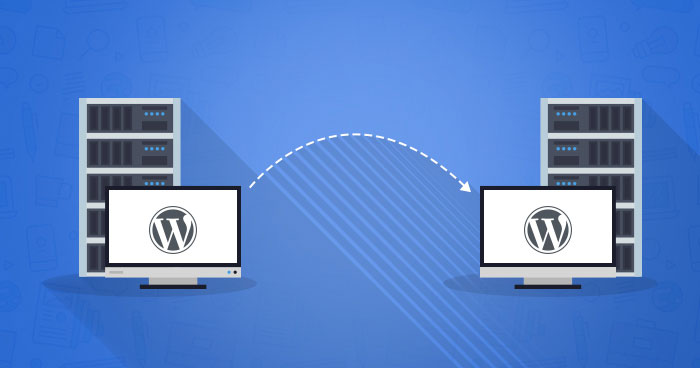
Migrating a website to cloud hosting can improve performance, scalability, and reliability. Unlike traditional hosting, cloud hosting allows your website to utilize multiple servers, ensuring uptime, faster load times, and easier management. However, migrating a website requires careful planning to avoid downtime or data loss. This guide explains how to migrate a website to cloud hosting efficiently.
Why Migrate to Cloud Hosting?
Cloud hosting offers several advantages over traditional shared or dedicated hosting:
- Scalability: Instantly adjust resources based on traffic
- Performance: Faster load times using distributed servers
- Reliability: Reduced risk of downtime due to server failures
- Cost Efficiency: Pay only for the resources you use
- Security: Advanced firewalls and encryption options
Businesses and developers increasingly move websites to cloud platforms to improve user experience and support future growth.
Step-by-Step Process to Migrate a Website to Cloud Hosting
The migration process can be broken down into the following key steps:
| Step | Description |
|---|---|
| 1. Choose a Cloud Hosting Provider | Options include AWS, Google Cloud, Microsoft Azure, and DigitalOcean. Select based on pricing, features, and support. |
| 2. Backup Your Website | Export files, databases, and configurations. This ensures you can restore your site if issues arise. |
| 3. Set Up Your Cloud Server | Create a new instance with the required operating system and server environment. Configure CPU, RAM, and storage. |
| 4. Transfer Website Files | Use FTP, SSH, or a migration tool to move all files and media to the cloud server. |
| 5. Migrate Databases | Export databases from the current host and import them into the cloud database service. Ensure usernames, passwords, and permissions are correct. |
| 6. Update Configuration Files | Adjust website configuration, database connections, and environment variables to match the cloud server setup. |
| 7. Test the Website | Use a temporary URL or hosts file modification to check functionality, links, and database connections before updating DNS. |
| 8. Update DNS Settings | Point your domain to the cloud server IP address. Allow DNS propagation, which may take up to 48 hours. |
| 9. Monitor and Optimize | Track performance, enable caching, optimize images, and ensure backups are configured. |
Tips for a Smooth Cloud Migration
- Choose the Right Server Type: Consider whether a virtual machine, containerized environment, or managed platform best suits your website.
- Use Migration Tools: Many cloud providers offer automated migration tools to simplify the process.
- Ensure SSL Certificates Are Installed: Security is crucial, especially for e-commerce or login-based sites.
- Schedule During Low Traffic Hours: Minimizes impact on visitors.
- Enable Auto-Scaling: For websites expecting fluctuating traffic, auto-scaling ensures consistent performance.
Advanced AI tools and automation scripts are increasingly used in hosting management, similar to the innovations seen in Tesla’s Robot: Innovations in Automation Technology, which highlight the benefits of automation in complex technical environments.
Common Challenges During Migration
- Downtime: Can be minimized by careful planning and testing.
- Data Loss: Regular backups prevent permanent loss.
- Configuration Errors: Ensure environment variables and database connections are updated.
- DNS Propagation Delays: Expect delays of up to 48 hours; plan accordingly.
Benefits of Cloud Hosting Post-Migration
- Improved website speed and responsiveness
- Easier scaling to handle traffic spikes
- Enhanced security and redundancy
- Better control over server environment
- Reduced dependency on a single physical server
FAQs About Migrating a Website to Cloud Hosting
Can I migrate any website to the cloud?
Most websites, including static sites, CMS-based platforms, and e-commerce stores, can be migrated. Complex applications may require additional configuration.
Will my website experience downtime during migration?
Proper planning and testing can minimize downtime. Using staging environments ensures a seamless transition.
Do I need technical expertise?
Basic knowledge of servers, databases, and DNS is helpful. Managed cloud providers can simplify the process for non-technical users.
How long does migration take?
It depends on website size, complexity, and internet speed. Small websites may take a few hours; larger sites could take a day or more.
Is cloud hosting more expensive?
Cloud hosting can be cost-effective because you pay for resources used, but costs can rise with high traffic if not monitored carefully.
Conclusion
Migrating a website to cloud hosting improves performance, scalability, and reliability, making it an essential step for growing businesses and ambitious web projects. By following a structured approach, from choosing a provider to testing and optimizing, website owners can ensure a smooth transition with minimal downtime.
Automation, monitoring, and proactive management post-migration further enhance cloud hosting benefits, providing a foundation for a fast, secure, and scalable website.


