

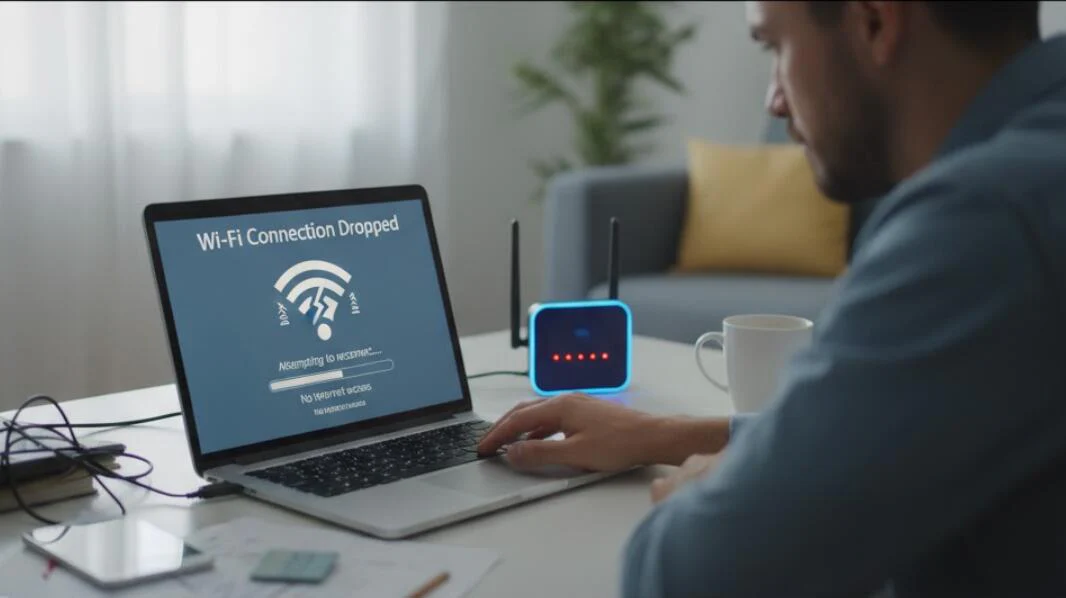
A WiFi connection that keeps dropping can be frustrating, especially when working from home, streaming, or gaming. Frequent disconnections can interrupt productivity and lead to slow performance. Understanding the common causes and applying effective fixes can restore stable and reliable connectivity.
This guide provides step-by-step solutions to resolve WiFi disconnection issues, along with tips to optimize your network for consistent performance.
Common Causes of WiFi Connection Drops
WiFi instability can result from several factors:
- Router Issues: Outdated firmware, hardware faults, or incorrect placement.
- Interference: Other electronics, neighbors’ WiFi networks, or thick walls.
- Network Congestion: Too many devices connected simultaneously.
- ISP Problems: Slow or unreliable service from your internet provider.
- Device Settings: Outdated drivers, power-saving modes, or misconfigured network adapters.
- Security Settings: Conflicting firewalls or VPNs may interrupt connectivity.
Identifying the root cause is crucial for applying the right fix.
Step 1: Restart Your Router and Devices
- Power off your router and modem for 30 seconds.
- Restart the device experiencing connectivity issues.
- Reconnect to the WiFi network.
Often, simple restarts resolve temporary glitches and refresh network connections.
Step 2: Update Router Firmware
- Log into your router’s admin panel (usually via the router IP).
- Check for firmware updates provided by the manufacturer.
- Install updates and reboot the router.
Updated firmware can fix bugs and improve connection stability.
Step 3: Optimize Router Placement
- Place the router in a central location, away from walls and obstructions.
- Keep it elevated on a desk or shelf rather than on the floor.
- Avoid placing the router near microwaves, cordless phones, or other electronics that cause interference.
Proper placement ensures stronger signals and fewer dropouts.
Step 4: Change WiFi Channels
- WiFi interference from neighboring networks may cause drops.
- Use the router settings to switch channels (typically 1, 6, or 11 for 2.4GHz).
- For 5GHz networks, choose less crowded channels to reduce interference.
Channel optimization often resolves frequent disconnection issues.
Step 5: Update Network Drivers on Your Device
- On Windows, go to Device Manager > Network adapters > Update driver.
- On Mac, ensure macOS is updated to the latest version.
- Restart your device after updates.
Outdated drivers can cause devices to lose connection unexpectedly.
Step 6: Disable Power Saving Mode
- Laptops and mobile devices may turn off WiFi to save power.
- On Windows, go to Power Options > Change advanced power settings > Wireless Adapter Settings > Set to Maximum Performance.
- On mobile devices, check WiFi sleep policies in settings.
Disabling power-saving modes prevents WiFi disconnections during idle periods.
Step 7: Use a WiFi Extender or Mesh Network
- If your home or office has weak signal areas, consider a WiFi extender or mesh system.
- Mesh networks provide seamless coverage, reducing dropouts in larger spaces.
This solution is particularly effective for larger offices or remote work setups.
Step 8: Reset Network Settings
- On Windows: Settings > Network & Internet > Status > Network reset.
- On Mac: System Preferences > Network > Remove and re-add WiFi connection.
- On mobile devices: Use the “Reset Network Settings” option.
Resetting clears misconfigurations and restores default connectivity.
Step 9: Contact Your ISP
- Persistent issues may stem from your internet service provider.
- Check if there are outages or network problems in your area.
- Request technical support if needed to diagnose line or hardware issues.
Sometimes, the problem is outside your control and requires ISP intervention.
Comparison Table of Fix Methods
| Fix Method | Best For | Notes |
|---|---|---|
| Restart Router & Device | Temporary glitches | Quick and simple first step |
| Update Firmware | Bug fixes | Router manufacturer support required |
| Optimize Placement | Weak signal areas | Elevate and centralize router |
| Change Channels | Interference | 2.4GHz and 5GHz adjustments |
| Update Drivers | Device-specific drops | Regularly check updates |
| Disable Power Saving | Idle disconnections | Ensure max performance mode |
| WiFi Extender / Mesh | Large spaces | Improves coverage |
| Reset Network Settings | Persistent misconfigurations | Last resort before ISP contact |
Frequently Asked Questions (FAQs)
Q: Why does my WiFi work for some devices but not others?
It could be a device-specific issue like outdated drivers, low signal, or incompatible WiFi standards.
Q: Will changing my router’s WiFi password help?
Yes, if unauthorized devices are connected, changing the password can reduce network congestion.
Q: Are 5GHz networks more stable than 2.4GHz?
5GHz is faster and less crowded but has a shorter range; 2.4GHz has longer coverage but more interference.
Q: Can a VPN cause WiFi to drop?
Yes, misconfigured VPNs may interfere with connectivity. Test disabling it temporarily to check.
Q: How often should I update router firmware?
Check every 6–12 months or when the manufacturer releases updates.
Final Thoughts
Fixing a WiFi connection that keeps dropping requires a combination of troubleshooting steps, from restarting devices to updating firmware and optimizing network settings. Using extenders or mesh networks can improve coverage for larger spaces, and staying proactive with updates and settings prevents recurring issues.


