

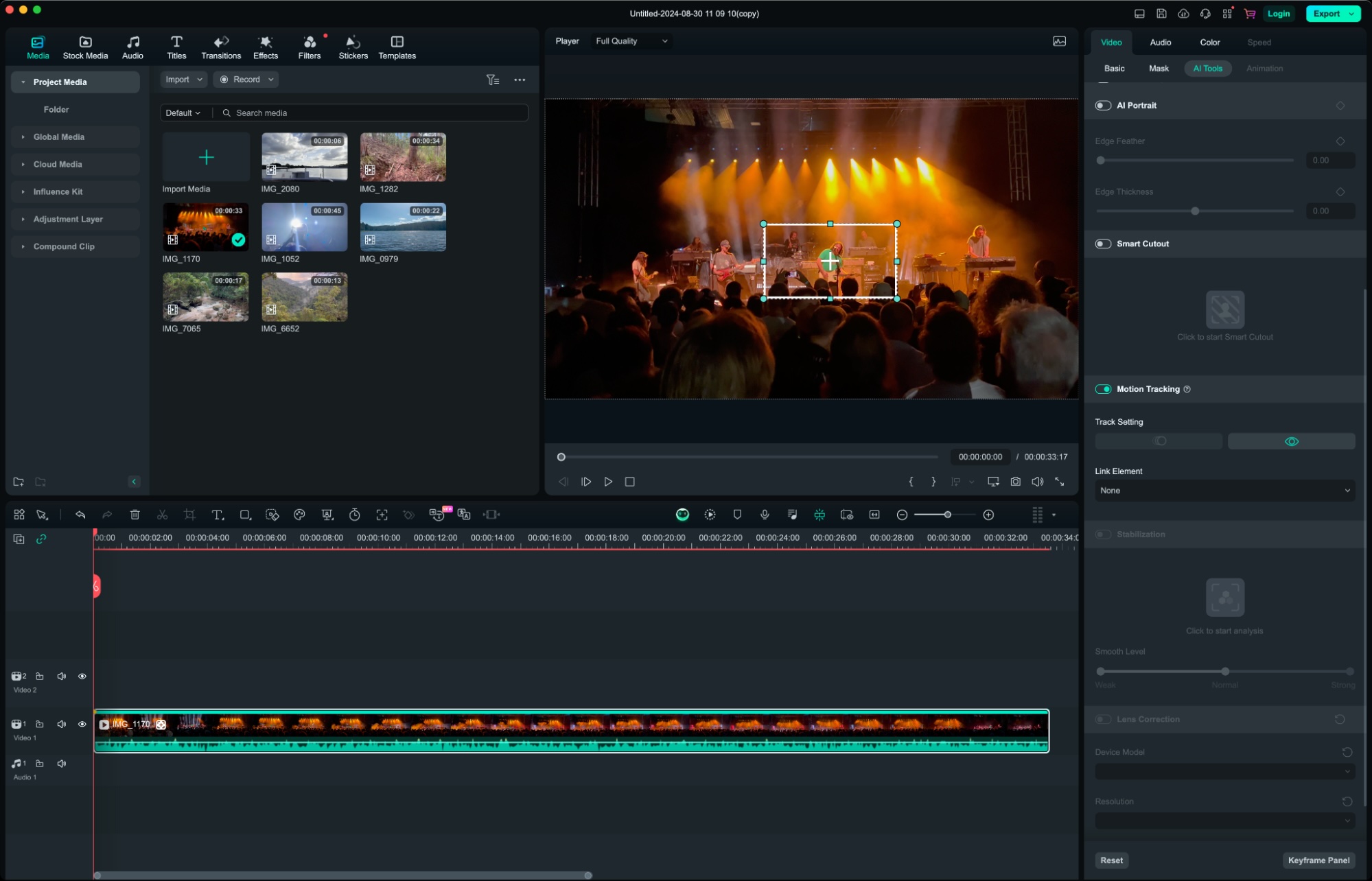
With the increasing popularity of 4K cameras and high-end smartphones, creating stunning ultra-high-definition videos has become accessible to content creators, filmmakers, and tech enthusiasts. However, editing 4K videos requires specialized software that can handle large file sizes, maintain smooth performance, and offer advanced editing features. Choosing the right software ensures that your final product is polished, professional, and visually impressive.
This guide explores the best software options for editing 4K videos, highlights their strengths, and provides tips for selecting the right tool for your workflow.
Why 4K Video Editing Requires Special Software
Editing 4K videos presents unique challenges:
- Large file sizes: 4K footage takes up significantly more storage than HD video
- High processing power: Requires efficient rendering and playback for smooth editing
- Advanced color grading: 4K videos often benefit from high-end color correction
- Special effects and transitions: Demanding on system resources
Using software optimized for 4K ensures stability, speed, and high-quality output, making the editing process more efficient.
Key Features to Look for in 4K Video Editing Software
1. Performance and Speed
High-performance software reduces lag during editing and renders videos faster. GPU acceleration and proxy editing can significantly improve workflow.
2. Editing Tools
Professional 4K editing requires a range of tools:
- Multi-track editing
- Color correction and grading
- Audio mixing
- Keyframe animation
- Transitions and effects
The right software should combine power with usability, allowing both beginners and advanced users to work efficiently.
3. Compatibility
Ensure the software supports multiple video formats, including popular 4K codecs such as:
- MP4 (H.264/H.265)
- MOV
- ProRes
- AVCHD
Cross-platform compatibility with Windows, Mac, or Linux may also be important depending on your workflow.
4. Rendering and Export Options
4K video editing software should offer flexible export settings for:
- Online platforms (YouTube, Vimeo)
- High-quality archiving
- Compressed formats for social media
Batch rendering, customizable codecs, and presets improve efficiency.
5. User Interface and Learning Curve
Software with an intuitive interface allows beginners to start editing quickly, while advanced tools support complex projects. Tutorials, community forums, and customer support are valuable for learning.
Comparison Table: Best Software for Editing 4K Videos
| Software | Platform | Key Features | Best For | Price |
|---|---|---|---|---|
| Adobe Premiere Pro | Windows/Mac | Multi-track editing, color grading, effects, GPU acceleration | Professionals & enthusiasts | Subscription |
| Final Cut Pro X | Mac | Magnetic timeline, 4K optimized, motion graphics | Mac users & pros | One-time purchase |
| DaVinci Resolve | Windows/Mac/Linux | Advanced color grading, Fusion effects, Fairlight audio | Color grading & VFX | Free/Studio |
| CyberLink PowerDirector | Windows/Mac | 360° video, motion tracking, proxy editing | Beginners & intermediate | One-time/Subscription |
| Filmora | Windows/Mac | Easy interface, templates, basic effects | Beginners & casual creators | Subscription |
Top Picks for Different Users
Adobe Premiere Pro
Premiere Pro is an industry-standard software for professional 4K video editing. Its powerful tools, extensive plugin support, and seamless integration with Adobe Creative Cloud make it ideal for serious content creators.
Pros:
- Advanced editing tools
- Excellent for multi-camera editing
- GPU acceleration for smooth playback
Cons:
- Subscription model may be expensive for casual users
- Learning curve can be steep
Final Cut Pro X
Exclusive to Mac, Final Cut Pro X is optimized for 4K and even 8K editing. Its magnetic timeline and fast rendering speeds make it a favorite among Mac users and professional editors.
Pros:
- Fast rendering and smooth playback
- One-time purchase
- Optimized for Apple hardware
Cons:
- Mac-only software
- Some advanced plugins require additional purchase
DaVinci Resolve
DaVinci Resolve is renowned for its color grading capabilities. The free version offers professional-grade tools, making it perfect for students, indie filmmakers, and colorists.
Pros:
- Free version is feature-rich
- Excellent color grading tools
- Supports VFX and audio editing
Cons:
- Requires a powerful system for smooth 4K editing
- Interface may feel complex for beginners
CyberLink PowerDirector
PowerDirector balances advanced features with user-friendly design. It supports proxy editing, which is ideal for lower-end computers handling 4K footage.
Pros:
- Beginner-friendly interface
- Fast rendering with GPU support
- Flexible pricing
Cons:
- Some advanced tools are limited compared to Premiere or Resolve
Filmora
Filmora is perfect for beginners who want to edit 4K videos without overwhelming complexity. Its templates, effects, and simple workflow make it ideal for casual content creation.
Pros:
- Easy to learn
- Good for social media content
- Affordable subscription
Cons:
- Limited advanced features
- Fewer professional-grade tools
Tips for Choosing the Right 4K Editing Software
- Define your needs: Casual content creation, professional filmmaking, or social media
- Consider your hardware: Ensure your computer can handle 4K editing software requirements
- Check trial versions: Many software offer free trials to test features
- Budget wisely: Evaluate one-time purchase versus subscription models
- Support and tutorials: Access to guides and communities can accelerate learning
Frequently Asked Questions (FAQs)
Can I edit 4K videos on a regular laptop?
Yes, but performance may be limited. Proxy editing and GPU acceleration help improve playback and rendering.
Is free software sufficient for 4K editing?
DaVinci Resolve and similar software provide professional-grade free options, while others may require paid plans for advanced features.
How much storage do I need for 4K video projects?
4K footage consumes large amounts of storage. An external SSD or high-capacity internal drive is recommended.
Can beginners use professional-grade software?
Yes. While the learning curve may be steeper, tutorials, templates, and guides make professional software accessible.
Do I need a powerful graphics card for 4K editing?
A dedicated GPU improves rendering speed and real-time playback, especially with effects and color grading.
Final Thoughts
Choosing the right software for editing 4K videos depends on your skill level, goals, and hardware. From beginner-friendly options like Filmora to professional-grade tools like Adobe Premiere Pro and Final Cut Pro X, there is a solution for every type of content creator.
For tech enthusiasts who invest in gadgets such as drones or 4K cameras, similar to the Best Affordable Drones for Tech Enthusiasts, selecting software that complements hardware capabilities ensures you can maximize your creative potential while producing stunning, high-resolution videos.


