

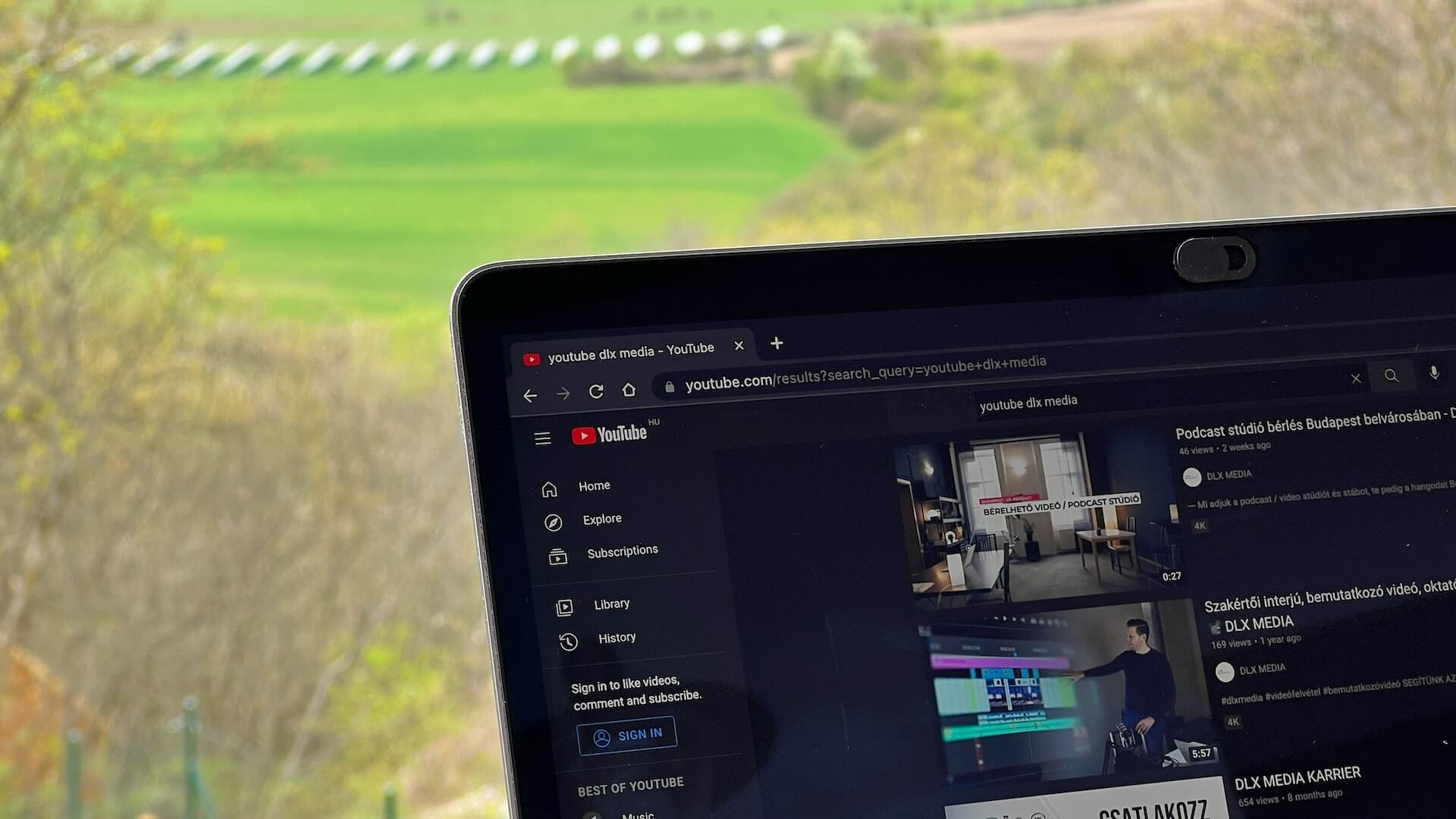
Creating YouTube tutorials requires more than just knowledge — it demands clear, professional-quality video content. One of the most important tools for tutorial creators is screen recording software. The right software allows you to capture your screen, webcam, audio, and even annotations seamlessly. In 2025, several programs stand out for their features, ease of use, and affordability, making them perfect for YouTube creators of all levels.
This guide explores the best screen recording software options for YouTube tutorials, key features to look for, and tips to maximize your video quality.
Key Features to Look for in Screen Recording Software
When choosing screen recording software for YouTube tutorials, consider:
- High-quality video capture – Support for 1080p, 1440p, or 4K resolution.
- Audio recording – Ability to record system audio, microphone input, or both simultaneously.
- Webcam integration – Record yourself alongside the screen for personal touch.
- Editing tools – Trimming, annotations, transitions, and text overlays.
- Export options – Formats compatible with YouTube (MP4, MOV) and adjustable bitrate.
- Ease of use – Intuitive interface for beginners and advanced customization for experienced creators.
- Performance efficiency – Minimal lag during recording, especially on lower-end systems.
Prioritizing these features ensures your tutorials are professional, engaging, and smooth.
Top Screen Recording Software for YouTube Tutorials in 2025
1. OBS Studio
- Pros: Free, open-source, highly customizable, supports high-resolution recording
- Cons: Slightly steep learning curve for beginners
- Best for: Creators who want full control over recording and live streaming
2. Camtasia
- Pros: Built-in editor, annotations, transitions, and templates; beginner-friendly interface
- Cons: Paid software, higher price than other options
- Best for: Beginners and intermediate users wanting all-in-one recording and editing
3. Screencast-O-Matic
- Pros: Affordable, cloud storage options, simple interface
- Cons: Limited free version, fewer advanced features
- Best for: Quick tutorials and simple edits
4. Bandicam
- Pros: Lightweight, high compression for smaller file sizes, supports 4K recording
- Cons: Free version adds watermark; some advanced features behind paywall
- Best for: High-resolution screen captures with minimal performance impact
5. ShareX
- Pros: Free, open-source, supports annotations, GIF capture, multiple formats
- Cons: Interface may seem overwhelming for beginners
- Best for: Tech-savvy users who need versatile capture options
Table: Comparison of Screen Recording Software for YouTube Tutorials
| Software | Price | Key Features | Best For |
|---|---|---|---|
| OBS Studio | Free | High-resolution recording, streaming | Advanced users & live streaming |
| Camtasia | Paid | Built-in editing, annotations, templates | Beginners & intermediate editors |
| Screencast-O-Matic | Free/Paid | Cloud storage, simple interface | Quick tutorials & simple edits |
| Bandicam | Paid | 4K recording, small file size | High-res screen capture |
| ShareX | Free | Annotations, GIF capture, multiple formats | Tech-savvy users & versatile capture |
Tips for Recording High-Quality YouTube Tutorials
- Optimize screen resolution – Record at the same resolution your viewers will watch.
- Use a good microphone – Clear audio is just as important as video quality.
- Plan your content – Script or outline your tutorial to reduce unnecessary mistakes.
- Edit for clarity – Trim long pauses, highlight key actions, and add annotations.
- Check lighting if using webcam – Even a simple ring light improves visual quality.
When setting up your home workspace for recording, make sure you have the right environment. Just like assembling Essential Components for a Home Theater System, having the right tools — microphone, lighting, and comfortable workspace — significantly enhances the final output.
FAQs
1. Is free screen recording software good enough for YouTube tutorials?
Yes, free tools like OBS Studio and ShareX can produce professional-quality videos if you understand their settings.
2. Can I record webcam and screen simultaneously?
Most modern screen recording software, including Camtasia and OBS Studio, allows simultaneous webcam and screen recording.
3. What is the best format for YouTube uploads?
MP4 with H.264 codec is widely recommended for high quality and compatibility.
4. Do I need a powerful computer for screen recording?
It depends on your resolution and software. High-resolution recording may require more RAM and a faster CPU, but lightweight software like Bandicam works well on mid-range systems.
5. Can I edit my tutorials within the recording software?
Some tools, like Camtasia and Screencast-O-Matic, include editing features. For more advanced edits, you may need separate video editing software.
Final Thoughts
Creating YouTube tutorials in 2025 is easier than ever thanks to a wide range of screen recording software. OBS Studio, Camtasia, Screencast-O-Matic, Bandicam, and ShareX all offer unique features that cater to different skill levels and requirements. By combining quality recording, clear audio, and thoughtful editing, even budget-friendly setups can produce professional-grade tutorials. Ensuring you have a well-organized workspace and the right tools—similar to arranging Essential Components for a Home Theater System—can further elevate the quality of your content.


