

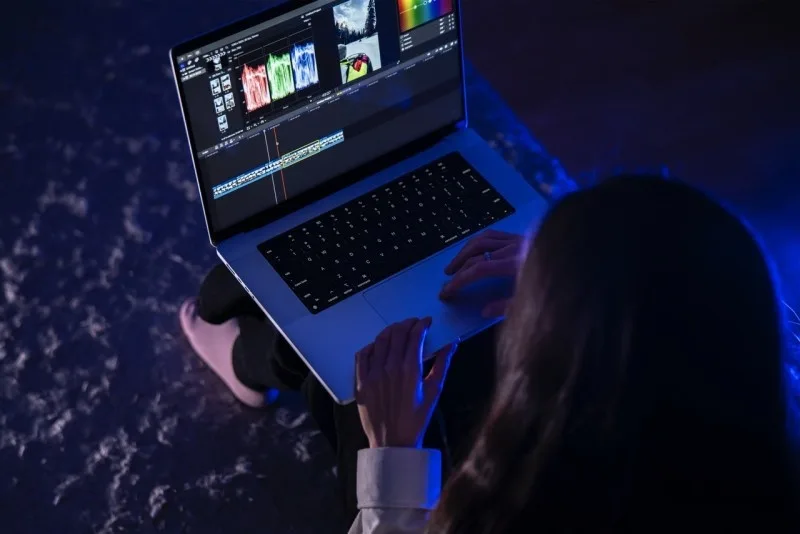
Video editing demands high-performance hardware, whether you’re producing YouTube content, professional films, or social media videos. One of the first decisions content creators face is whether to use a laptop or a desktop for their editing workflow. Each option has unique advantages and limitations, and your choice will depend on your priorities for performance, portability, and budget.
This guide examines laptop vs desktop for video editing performance, including processing power, graphics capabilities, storage, and overall usability.
Key Factors for Video Editing Performance
When comparing laptops and desktops for video editing, consider these critical factors:
- CPU Performance – Video editing software relies heavily on processor power. Multi-core CPUs with high clock speeds improve rendering times.
- GPU Power – Dedicated graphics cards accelerate effects, transitions, and rendering, especially for 4K or higher resolution projects.
- RAM – 16GB is the minimum for smooth editing; 32GB or more is recommended for high-resolution footage and complex timelines.
- Storage – SSDs provide faster read/write speeds, reducing load and export times. Large projects may require multiple terabytes of storage.
- Display Quality – Accurate color representation is crucial; IPS or OLED panels with high resolution improve editing precision.
- Upgradeability – Desktops often allow easy upgrades to RAM, GPU, or storage, extending the system’s lifespan.
Laptop Advantages
- Portability: Ideal for editors who travel or work from multiple locations.
- All-in-One Design: Includes screen, keyboard, and battery in a single device.
- Energy Efficiency: Modern laptops are optimized for lower power consumption.
- Instant Work Anywhere: Great for on-location editing during shoots.
Limitations:
- Typically more expensive than desktops with comparable specs.
- Thermal throttling may occur under heavy workloads.
- Upgrade options are limited; GPUs and CPUs are often non-replaceable.
Best Use Case: Freelancers, content creators, or editors who need mobility without sacrificing moderate editing performance.
Desktop Advantages
- Superior Performance: Desktops can house high-end CPUs and GPUs capable of handling 4K, 6K, or even 8K video workflows efficiently.
- Better Cooling: Larger chassis allow advanced cooling solutions, preventing thermal throttling.
- Upgrade Flexibility: RAM, GPU, storage, and even CPU upgrades are generally straightforward.
- Cost-Effectiveness: Higher performance per dollar compared to laptops.
Limitations:
- Not portable; confined to one workspace.
- Requires additional peripherals like a monitor, keyboard, and mouse.
Best Use Case: Professional video editors or studios that require maximum performance and long-term upgradeability.
Performance Comparison Table
| Feature | Laptop | Desktop |
|---|---|---|
| CPU Power | Moderate to High | High to Extreme |
| GPU Options | Limited, Mobile GPUs | Wide selection, full-size GPUs |
| RAM Upgrade | Often limited | Easy upgrade |
| Storage Upgrade | Limited | Easy, multiple drives |
| Cooling | Compact, limited airflow | Advanced, efficient airflow |
| Portability | High | Low |
| Cost | Higher for same specs | Better value |
| Display | Integrated, small | Large monitors, color-accurate |
Choosing Between Laptop and Desktop
- Consider Your Workflow:
- Are you editing mostly short-form content or high-resolution cinematic footage?
- Do you need mobility for travel or client presentations?
- Budget Considerations:
- Desktops often provide better value for performance.
- Laptops may cost more for similar specs but offer portability.
- Longevity and Upgrades:
- Desktops are easier to upgrade, extending usability.
- Laptops may become outdated faster if heavy editing demands increase.
- Additional Equipment Needs:
- Laptops require fewer peripherals but may need external monitors for color grading.
- Desktops need quality monitors, color calibration tools, and sometimes specialized input devices.
Practical Recommendations
- Laptop Recommendation: Apple MacBook Pro 16” (M2 Pro/Max) or high-end Windows laptop with NVIDIA RTX 40 series GPU for on-the-go editing.
- Desktop Recommendation: Custom-built PC with AMD Ryzen 9 or Intel Core i9, NVIDIA RTX 4090, 32–64GB RAM, and multiple SSDs for heavy 4K+ editing.
- Hybrid Option: Use a portable laptop for initial edits and rough cuts, then a desktop for final rendering and color grading.
Many small business owners building online portfolios or websites for video content also need reliable digital infrastructure. Learning from solutions like Best Web Hosting for Small Business Websites ensures your content can be shared efficiently with clients or audiences after production.
Frequently Asked Questions (FAQs)
Q: Can a laptop handle 4K video editing?
Yes, but ensure it has a powerful CPU, at least 16GB RAM, and a dedicated GPU. Rendering times may still be slower than a desktop.
Q: Is a desktop necessary for professional video editors?
While not strictly necessary, desktops provide better performance, cooling, and upgrade options for high-end or long-form projects.
Q: Are external GPUs an option for laptops?
Yes, eGPUs can enhance performance but require Thunderbolt 3/4 connections and can be expensive.
Q: How important is storage speed for editing?
Extremely. SSDs significantly reduce load and export times, especially when working with high-resolution footage.
Q: Can I mix laptop and desktop workflows?
Absolutely. Many editors use laptops for travel and rough cuts, then switch to desktops for final renders and color grading.
Final Thoughts
Choosing between a laptop vs desktop for video editing performance depends on your specific needs. Laptops offer portability and flexibility, while desktops provide unmatched raw power and upgrade potential. Assess your workflow, budget, and long-term goals to make the best decision.


