

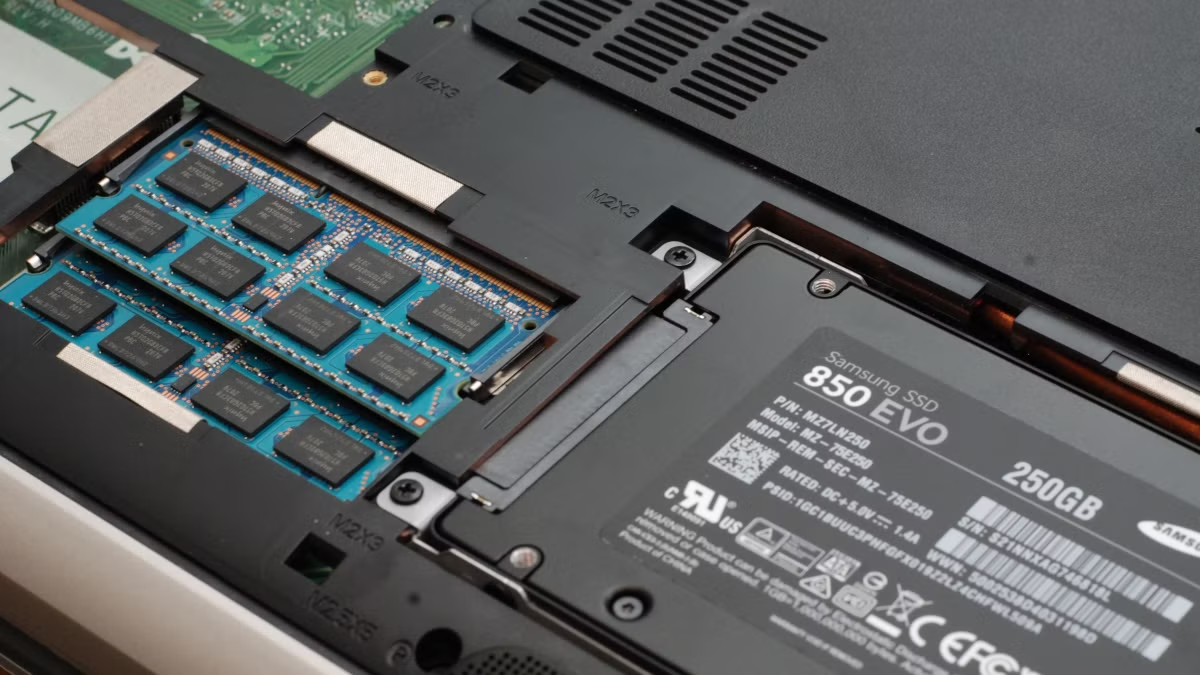
Upgrading RAM is one of the easiest and most effective ways to boost the performance of a gaming laptop. If your games stutter, take too long to load, or struggle with multitasking, increasing RAM can make a noticeable difference. Unlike upgrading a CPU or GPU, RAM upgrades are relatively affordable and beginner-friendly when done correctly.
This guide explains how to upgrade RAM on a gaming laptop, what to check before upgrading, and how to avoid common mistakes.
Why RAM Matters for Gaming Laptops
RAM (Random Access Memory) allows your laptop to handle multiple tasks simultaneously. Modern games require more memory to run smoothly, especially when paired with background apps such as launchers, voice chat, or browsers.
Benefits of upgrading RAM include:
- Improved gaming performance
- Reduced lag and stuttering
- Faster load times
- Better multitasking
- Smoother overall system responsiveness
How Much RAM Do You Need for Gaming?
The ideal amount of RAM depends on your usage:
- 8GB: Entry-level gaming and older titles
- 16GB: Recommended for modern games
- 32GB: Heavy multitasking, streaming, and future-proofing
For most gamers, upgrading to 16GB offers the best balance between performance and cost.
Things to Check Before Upgrading RAM
Before opening your laptop, confirm the following:
1. Maximum Supported RAM
Check your laptop’s specifications to find the maximum RAM capacity supported by the motherboard.
2. RAM Type and Speed
Gaming laptops typically use DDR4 or DDR5 SO-DIMM RAM. The new RAM must match the supported type and speed.
3. Available RAM Slots
Some laptops have one slot, others have two. Knowing this helps you decide whether to add or replace RAM.
Tools You’ll Need
- Small Phillips screwdriver
- Anti-static precautions (optional but recommended)
- Compatible RAM module
Step-by-Step: How to Upgrade RAM on a Gaming Laptop
Step 1: Power Off and Unplug
Shut down the laptop completely and disconnect all cables.
Step 2: Remove the Bottom Panel
Flip the laptop over and carefully unscrew the back panel. Keep screws organized.
Step 3: Locate the RAM Slots
RAM slots are usually covered by a protective shield. Remove it if necessary.
Step 4: Install the New RAM
Insert the RAM module at a slight angle, then press down until it clicks into place.
Step 5: Reassemble and Power On
Reattach the panel, tighten screws, and power on the laptop. The system should automatically detect the new RAM.
RAM Upgrade Compatibility Overview
| Feature | What to Check |
|---|---|
| RAM Type | DDR4 or DDR5 SO-DIMM |
| Capacity | Laptop’s maximum supported |
| Speed | Match supported MHz |
| Slots | Available or occupied |
| Voltage | Manufacturer requirement |
How to Confirm the Upgrade Was Successful
Once your laptop boots:
- Check system information in settings
- Verify RAM size in task manager
- Run a game or application to test performance
If the system doesn’t boot, reseat the RAM or confirm compatibility.
Common Mistakes to Avoid
- Buying incompatible RAM
- Mixing different RAM speeds
- Forgetting to unplug the battery
- Applying too much force during installation
- Ignoring manufacturer limitations
Avoiding these mistakes ensures a smooth upgrade process.
Is Upgrading RAM Worth It for Gaming?
Yes. While RAM alone won’t replace a powerful GPU, it removes performance bottlenecks and allows your hardware to operate efficiently. It’s one of the most cost-effective upgrades available, especially compared to buying a new laptop.
Just as Affordable 3D Printers for Students provide accessible entry points into advanced technology, RAM upgrades offer an affordable way to significantly enhance gaming performance.
When You Should Not Upgrade RAM
Upgrading RAM may not help if:
- Your laptop already has sufficient RAM
- The GPU is the main performance bottleneck
- The laptop uses soldered (non-upgradable) RAM
Always check upgradeability before purchasing components.
FAQs: How to Upgrade RAM on a Gaming Laptop
1. Can I upgrade RAM on any gaming laptop?
No. Some laptops have soldered RAM that cannot be upgraded.
2. Will upgrading RAM void my warranty?
In most cases, RAM upgrades do not void warranties, but it’s best to check manufacturer policies.
3. Can I mix different RAM brands?
Yes, but matching speed and capacity is recommended for stability.
4. Does more RAM increase FPS?
RAM helps reduce stuttering and improve stability, but FPS gains depend mostly on CPU and GPU.
5. How long does a RAM upgrade take?
Typically 15–30 minutes for most users.
Final Thoughts
Learning how to upgrade RAM on a gaming laptop is a valuable skill that can significantly extend the life and performance of your device. With proper preparation, compatible components, and careful installation, even beginners can complete the upgrade confidently. If you’re looking for a cost-effective way to improve gaming performance, a RAM upgrade is one of the smartest places to start.


